
Beyi Gas Station Management System: Complete Installation & Deployment Guide
News 2026年 10月 18日 3
Understanding the theoretical architecture is one thing. Performing correct on‑site installation and configuration is another. Many on‑site technicians run into communication failures, unrecognized fuel nozzles, or database connection errors simply because they follow the wrong installation sequence or enter incorrect parameters.
This step‑by‑step guide is based entirely on the official Beyi user manual. We will walk through pre‑installation checks, driver setup, database deployment, DIT configuration, server‑terminal activation, fuel‑gun mapping, and multi‑client deployment. Critical pitfalls are highlighted for each procedure.
Pre‑Installation Important Notice
The installation sequence cannot be reordered. If you skip steps or change the order, you will face communication breakdown between DIT, server terminal and application client.
Mandatory install order:
- CH341 USB‑to‑serial driver (for security dongle, card reader, password keyboard)
- MySQL 5.7 database deployed via BT‑Windows panel
- DIT fuel‑dispenser data‑collection software
- Beyi server terminal (requires internet connection for activation)
- Beyi application client
Hardware & software preparation checklist before you start:
‑ Prepare Windows computer for server; it is strongly recommended to install all programs on D drive, avoid C‑drive data loss from system reinstall.
‑ Security dongle (U‑dog) supplied by Beilin.
‑ CH341 driver setup file. ‑ BT‑Windows panel installer.
‑ Beyi installation packages: DITSetup, be‑server setup, application‑client setup.
‑ Obtain official activation code and gas‑station site name from Beilin.
‑ Server computer needs temporary internet access for system activation. After activation, the gas‑station local LAN can run offline.
Step 1: Query COM Port Number for Security Dongle
The CH341 driver is shared by security dongle, IC‑card reader and password keyboard. Install the driver first.
- Right‑click This PC → Manage → Device Manager.
- Expand Ports (COM and LPT).
- Locate the device named
USB‑SERIAL CH340. Record its corresponding COM port number, for example COM25.
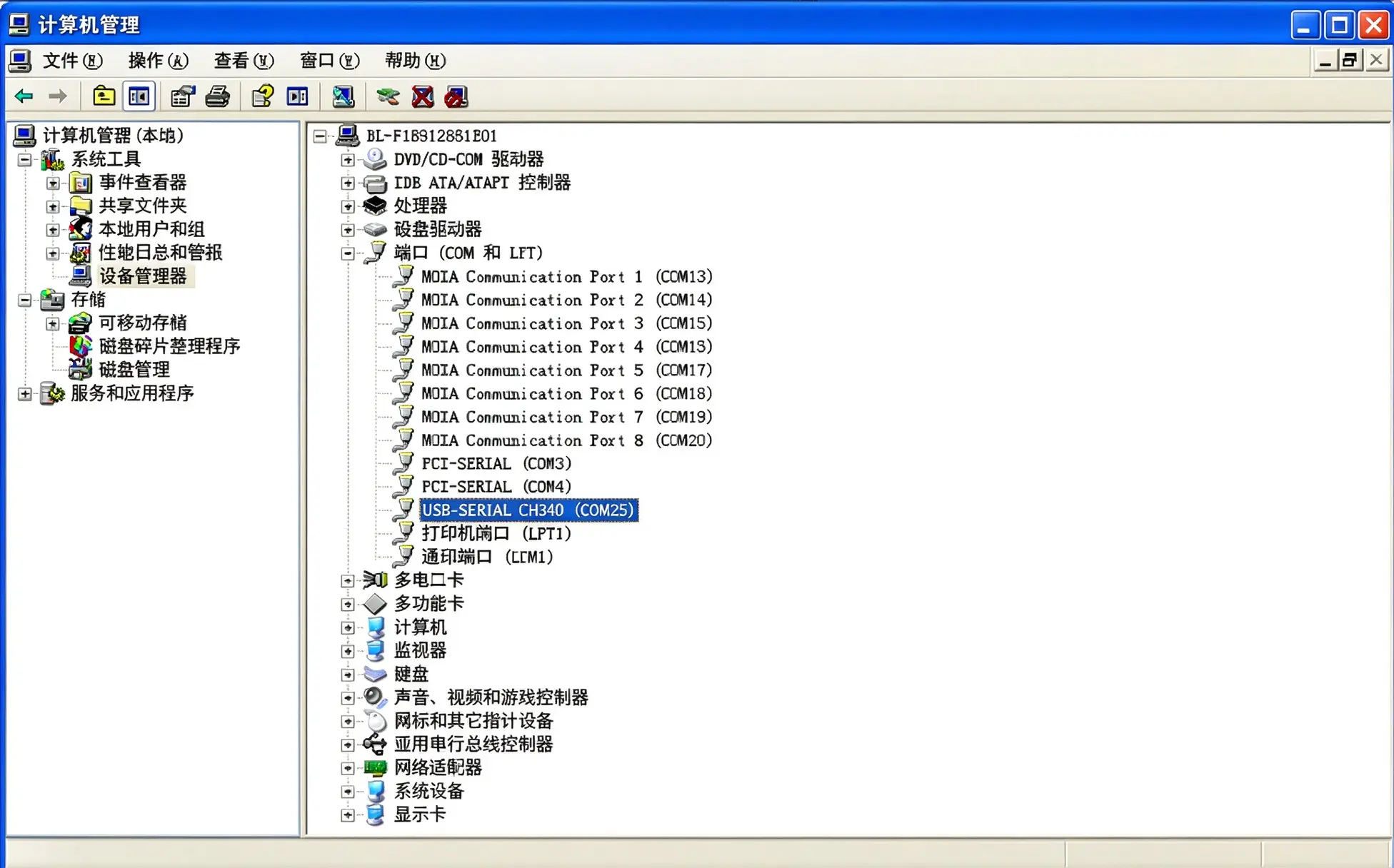
Critical note: This COM number will be entered later inside DIT serial‑port registration. Wrong COM value is the top cause of dongle communication failure.
If you cannot see this device entry: ‑ Re‑plug the USB security dongle. ‑ Reinstall CH341 driver.
Step 2: Install BT‑Windows Panel and MySQL 5.7 Database
Beyi system relies on MySQL 5.7 to store all station business data. We deploy MySQL through the BT Windows panel.
1.Download BT‑Windows panel installer from official BT website.
2.Run installer, use default settings, install to D‑drive. Click one‑click install.
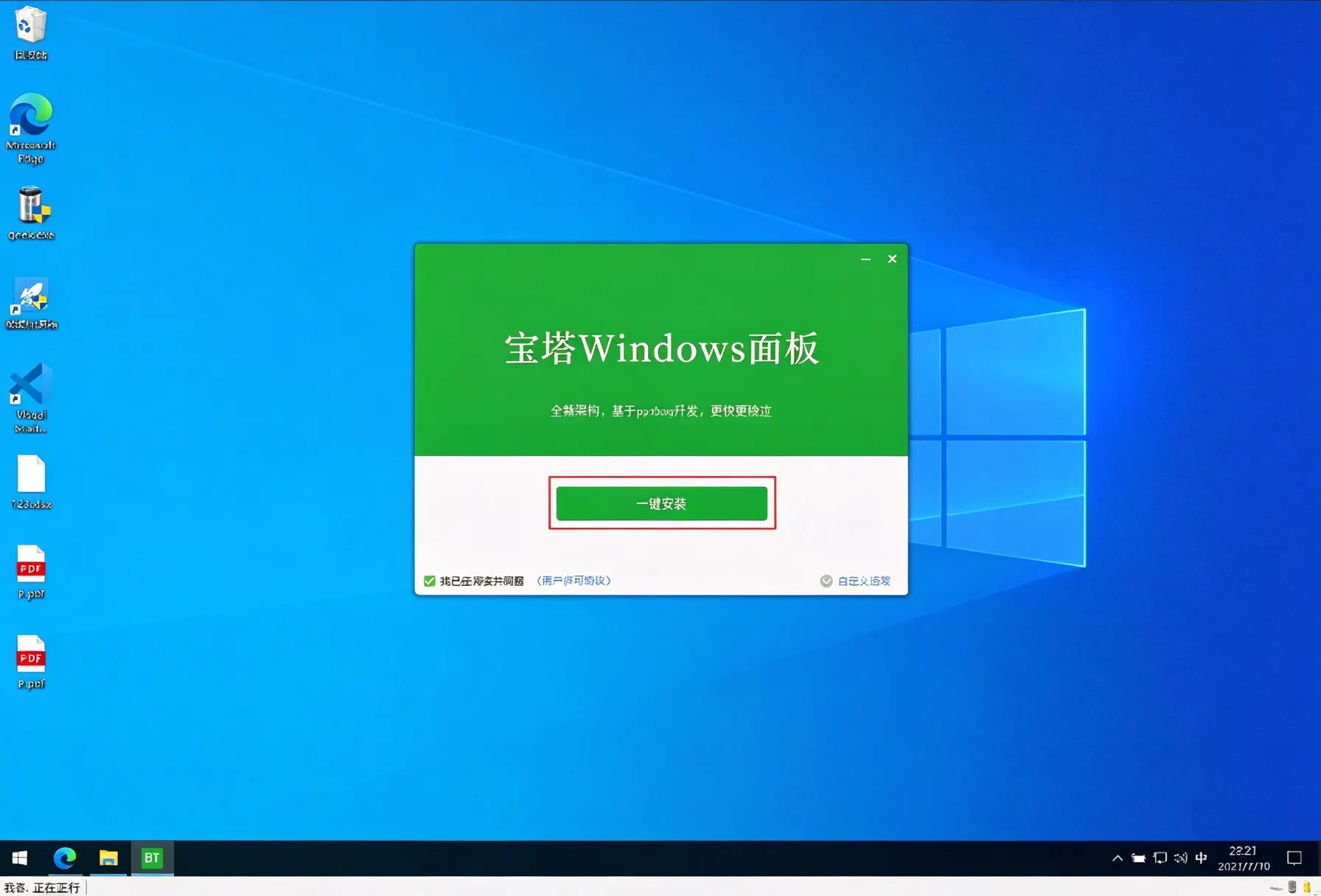
3.After installation completes, open panel access address shown on pop‑up window.
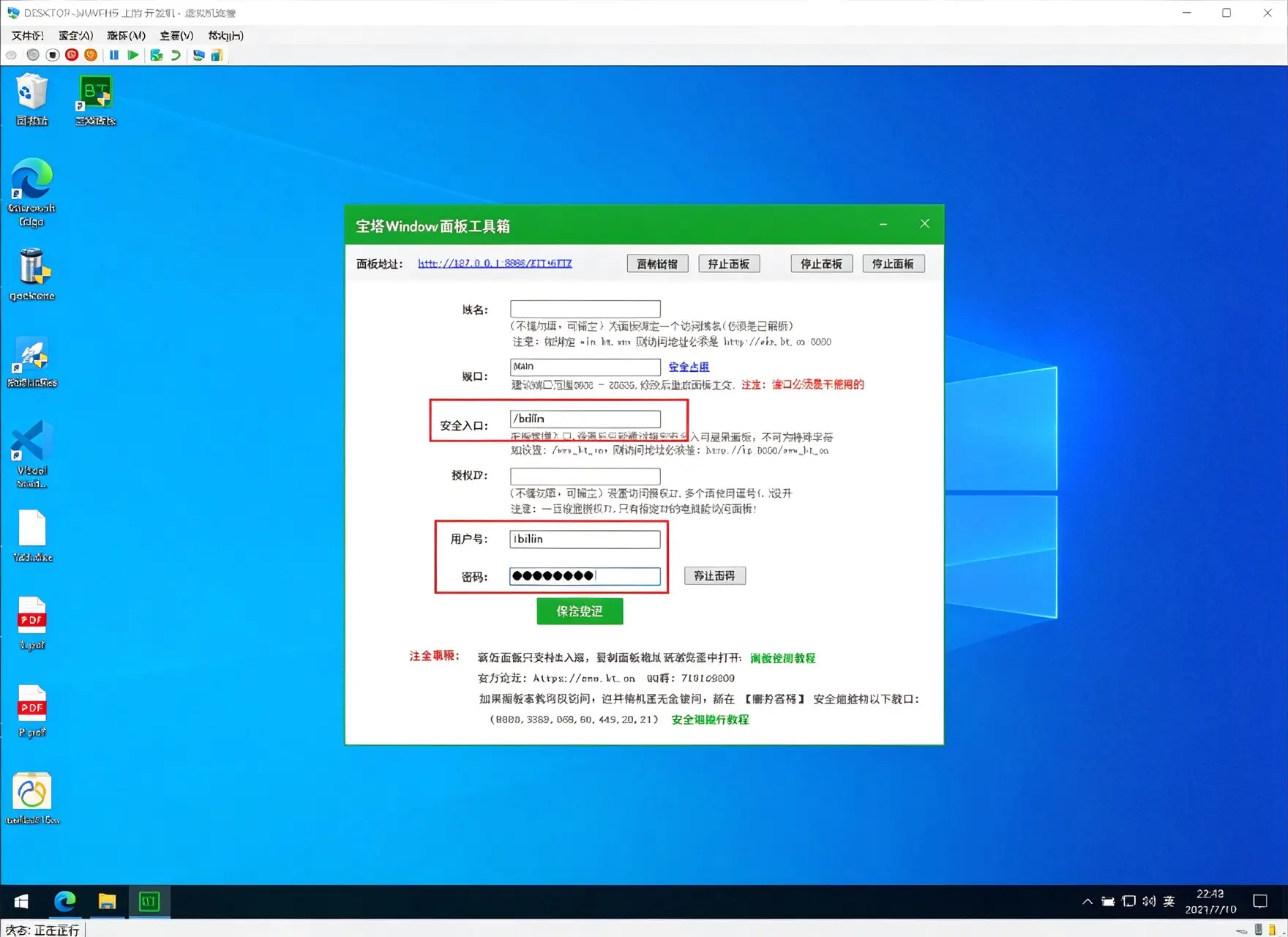
4.Modify panel security entry path, set admin username and custom password, save configuration.
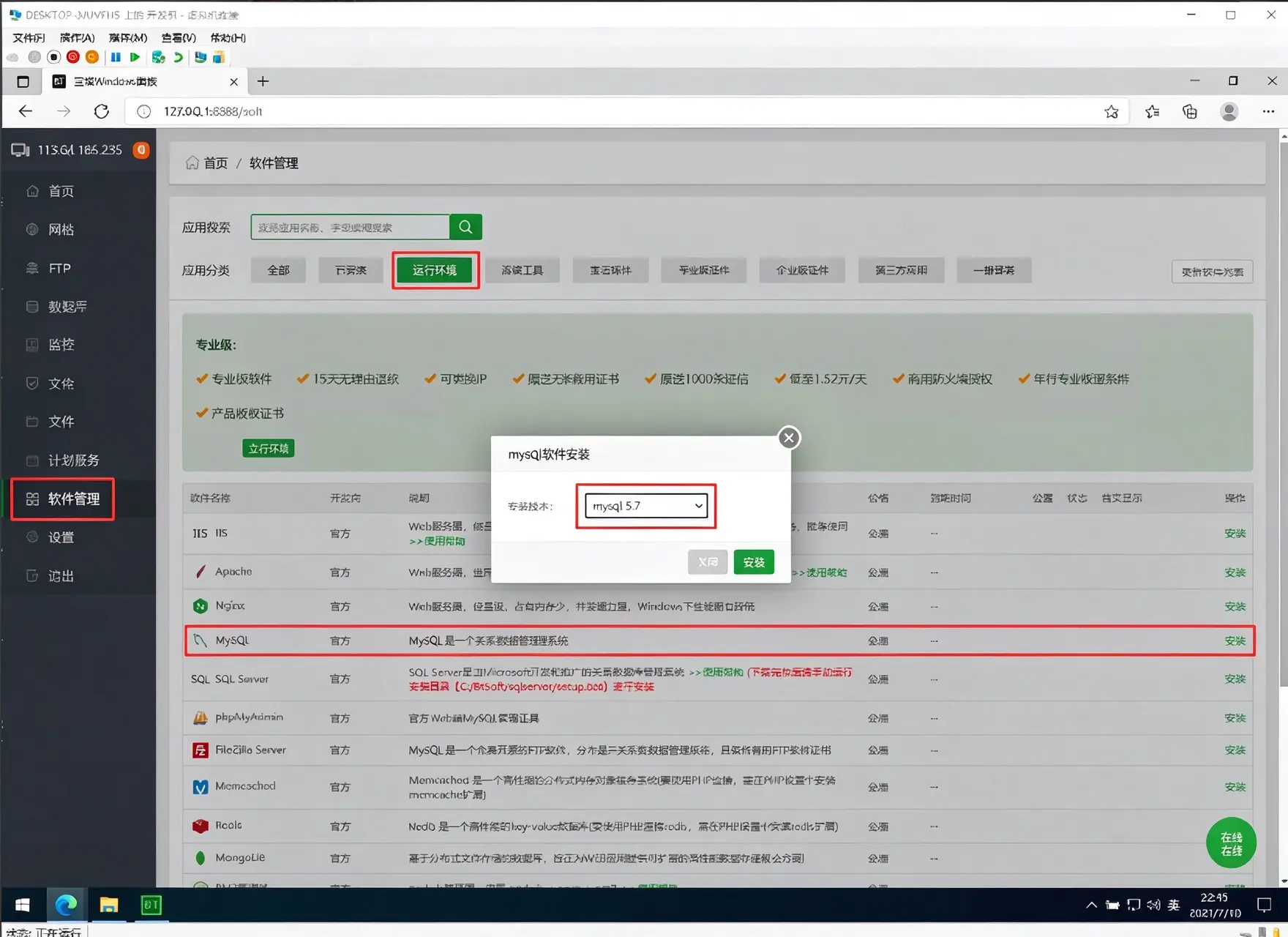
5.Navigate to Software → Runtime environment, find MySQL and select version 5.7 for installation. 👉【Image 4】 Image content: Install MySQL 5.7 inside BT panel Alt text: Install MySQL 5.7 on BT windows panel for Beyi gas station system
6.Once MySQL installation finishes, go to Database → root password. Set your custom root database password and save it.
Important reminder: Record MySQL host 127.0.0.1, username root, and your root password. These parameters will be used in server‑terminal database configuration later. Losing these credentials means you cannot connect Beyi service to the database.
Step 3: Install & Configure DIT Data‑Collection Software
DIT is the middleware that reads real‑time fuel‑dispenser data and forwards data to Beyi server terminal.
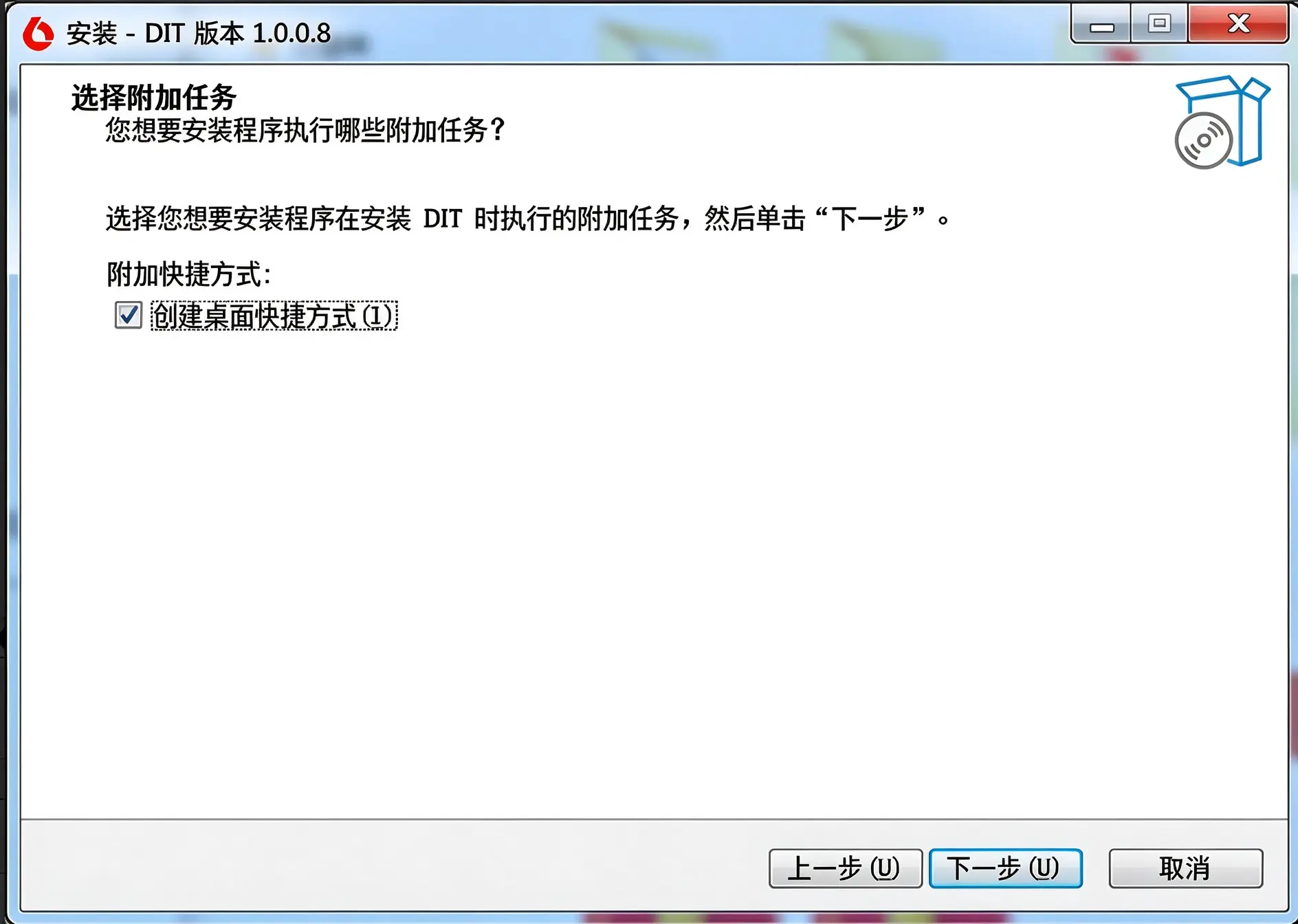
- Run
DITSetupinstallation package. Change install destination folder to D drive. - Check “Create desktop shortcut”, finish installation. DIT will auto‑launch after Windows startup.
3.1 Serial‑Port Registration Configuration
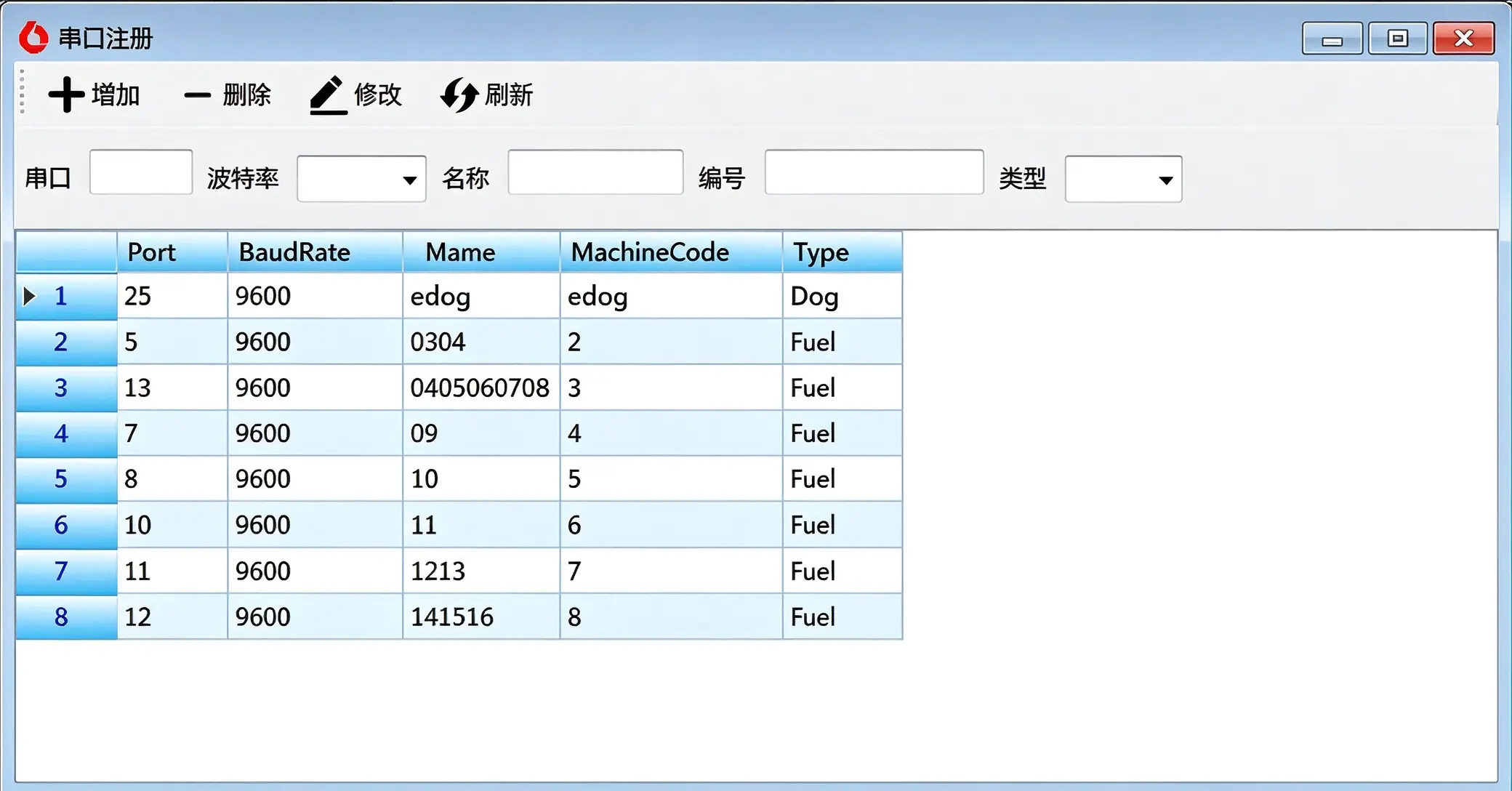
Open DIT software and open serial‑port register window.
- First add your security‑dongle entry: ‑ Port: fill in the COM number you recorded from device manager (e.g.25) ‑ BaudRate: fixed 9600 ‑ Name: custom name ‑ MachineCode: assign ID number for dongle ‑ Type: select
Dog - Add each physical fuel‑dispenser nozzle one‑by‑one: ‑ Type: select
Fuel‑ Port: corresponding hardware COM port ‑ BaudRate: 9600 ‑ MachineCode: write down every MachineCode value, this ID must match gun setting in server‑terminal later.
3.2 General Communication Configuration
Open general config page inside DIT: ‑ Auto‑configure fuel‑dispenser interface: leave unchecked ‑ Total‑station name: Beyi ‑ Card protocol: 800 ‑ IP address: if DIT and server‑terminal run on same PC: fill in 127.0.0.1 ‑ Port number: 8586
⚠️ High‑priority warning: Port 8586 inside DIT must match communication‑program port inside Beyi server terminal. Mismatched port will create total communication blackout between DIT and server.
Save configuration. Observe system log; you should see log message showing authorization successful and socket server started. If connection fails, double‑check COM port, baud‑rate and port 8586 setting.
Step 4: Install, Activate and Configure Beyi Server Terminal
Server terminal acts as the brain of the whole system, handling business logic, device management and database interaction.
4.1 Installation
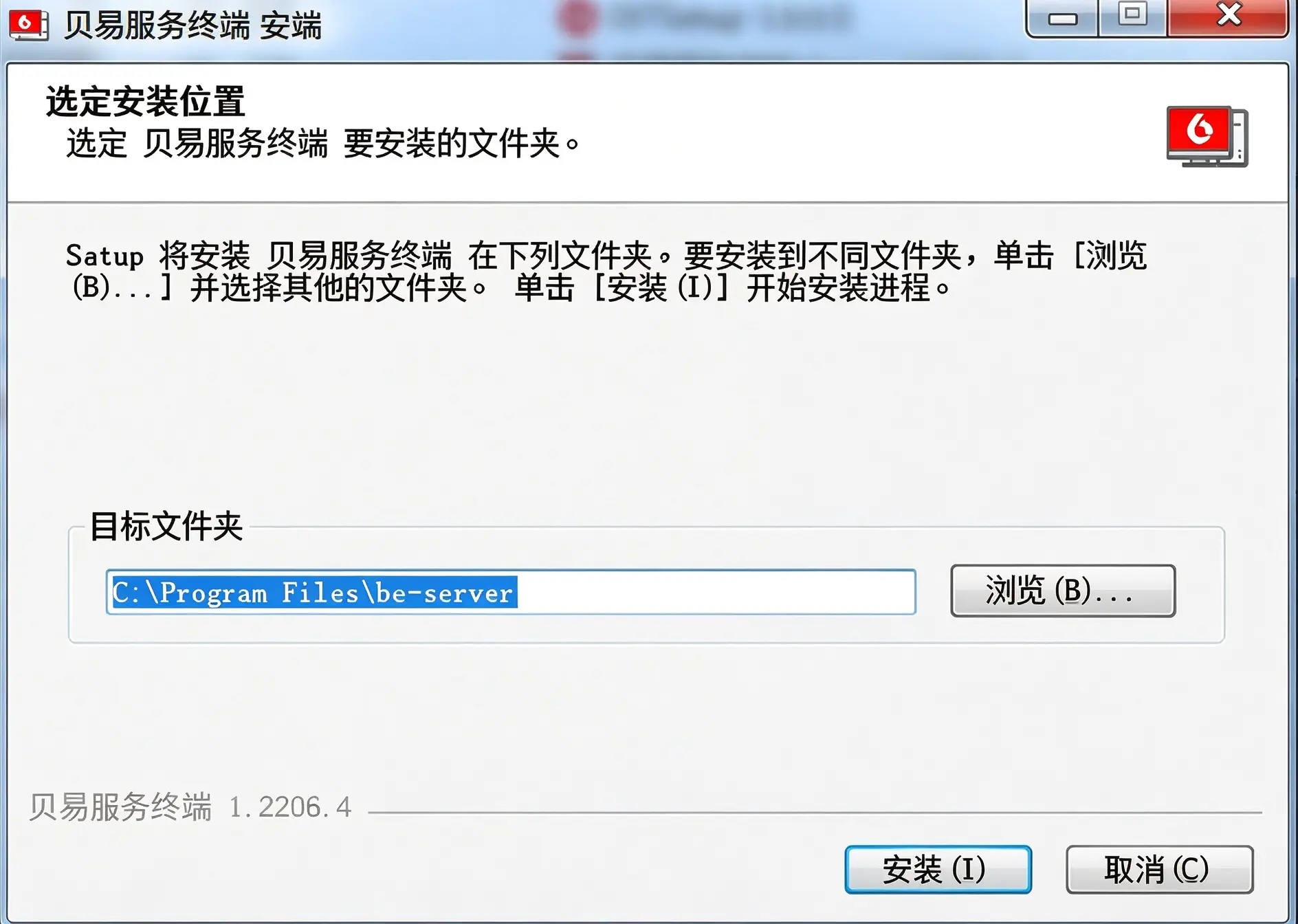
- Launch
be‑server Setupinstaller. Change install path from default C drive to D drive. - Complete installation, keep “Run Beyi server terminal” checked when finishing setup.
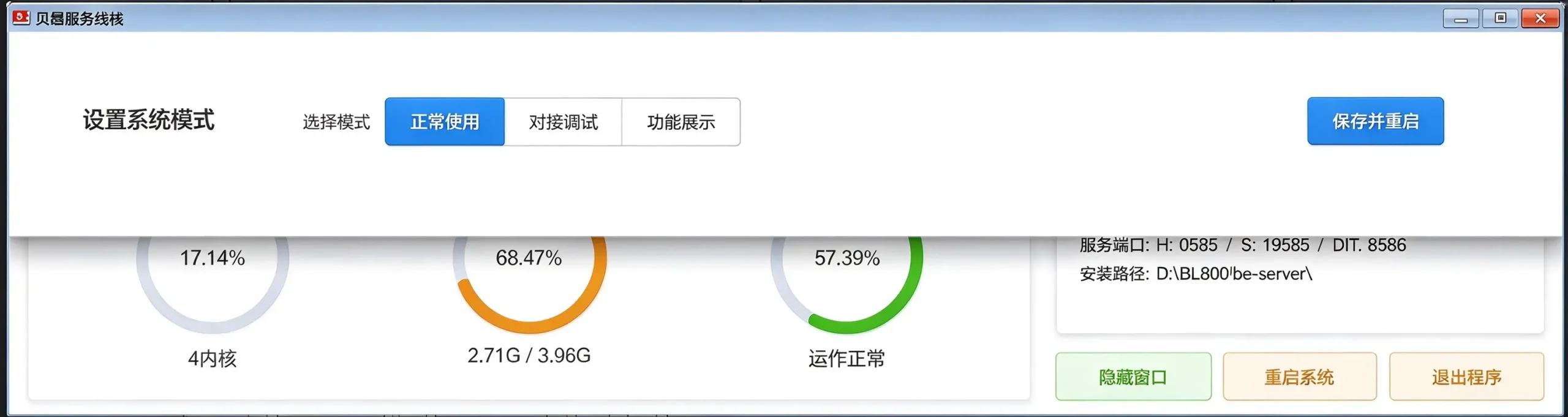
4.2 System Mode Selection
Three working modes to choose from: ‑ Normal Use: for real‑production gas‑station environment. Select this for live site deployment. ‑ Debug Connection: used when integrating Beyi with third‑party external systems. ‑ Demo Mode: for product demonstration, no physical fuel dispensers required.
Select Normal Use, click save and restart.
4.3 System Activation
Precondition: Computer must connect to internet for activation. DIT software must already be running and dongle COM correctly configured.
- Enter official activation code provided by Beilin.
- Fill in your gas‑station site name.
- Click verify and activate.
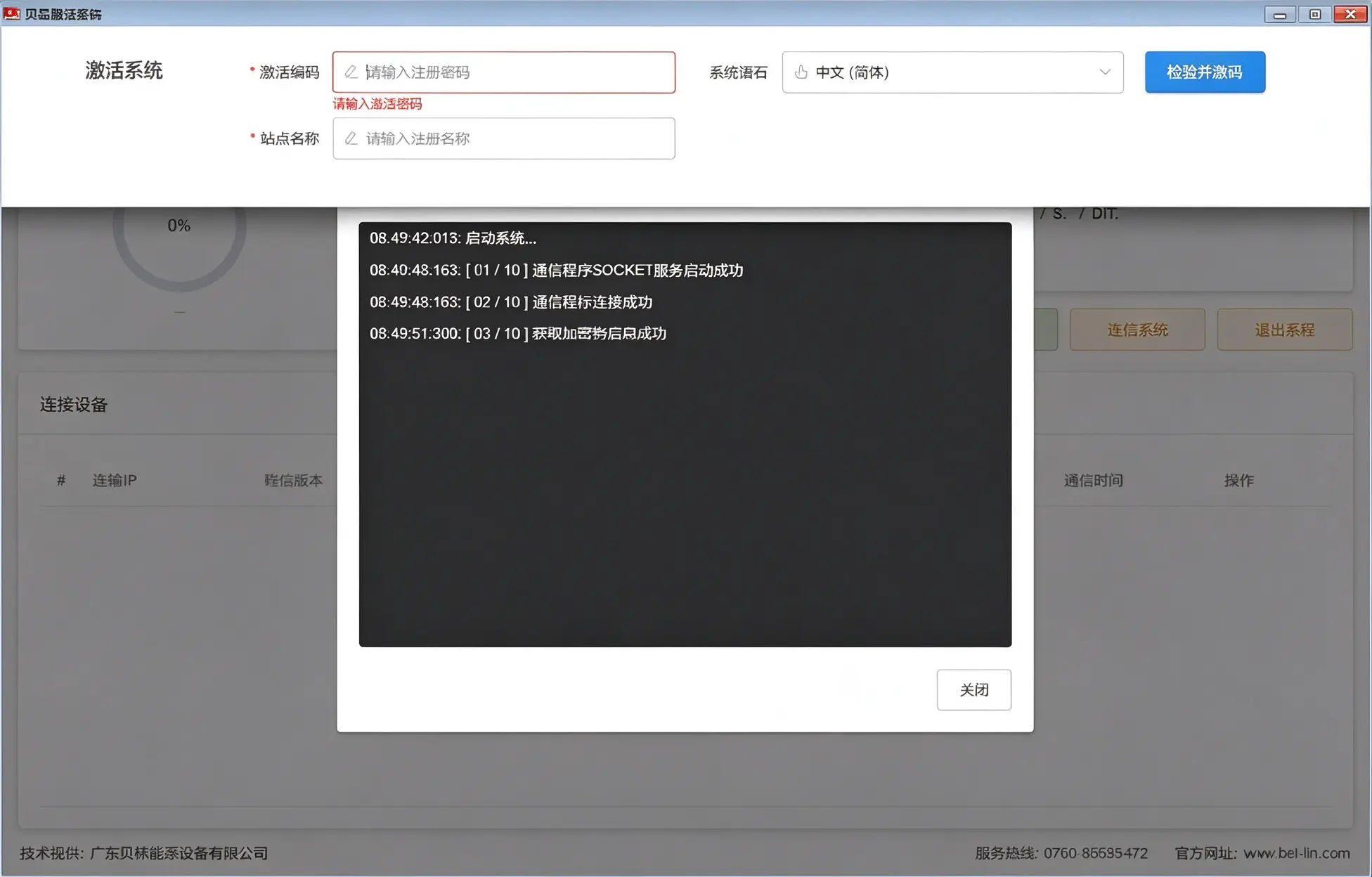
After successful activation, database‑configuration popup will appear automatically.
4.4 Database Configuration
Three database configuration tabs: local database, backup database, cloud database.
Local Database (single‑station on‑site primary database)
‑ Connect address: localhost ‑ Login account: root ‑ Port: 3306 ‑ Login password: your MySQL root password you set inside BT‑panel. Click save and create.
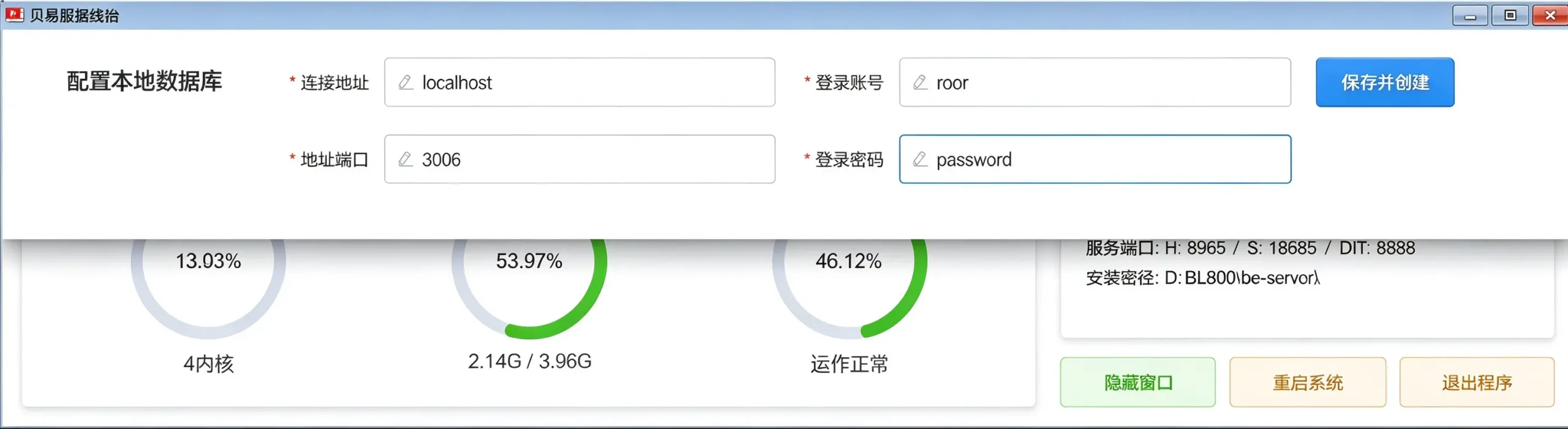
Backup Database (optional)
You need a second independent PC, with BT‑Windows panel and MySQL installed. Input the backup‑machine LAN IP, MySQL account and password. Used for real‑time off‑site data backup. Firewall on backup PC should be turned off if connection test fails.
Cloud Database (for multi‑station chained projects only)
Fill cloud‑database credentials only if you operate multiple connected gas stations for cross‑site data synchronization. Single standalone gas station does not require cloud‑database setup.
4.5 Core Business Parameter Settings
Click three‑dot menu on top‑right corner of server‑terminal dashboard to unfold setting menu.
4.5.1 Fuel Product Setting
Go to Basic Setting → Fuel setting. Click add fuel item. Input fuel code such as 92#, 95#, 98#, 0# diesel and corresponding unit price.
4.5.2 Oil Tank Setting
Go to Tank setting. Click add tank: ‑ Fill tank‑number, select associated fuel product, input max tank capacity. ‑ Optional: enable liquid‑level gauge function if you deploy supported liquid‑level meter (Vede‑Rout, Yongbang, Aoke, Sanshen brands are compatible). Liquid‑level gauge supports real‑time inventory reading and fuel‑loss calculation.
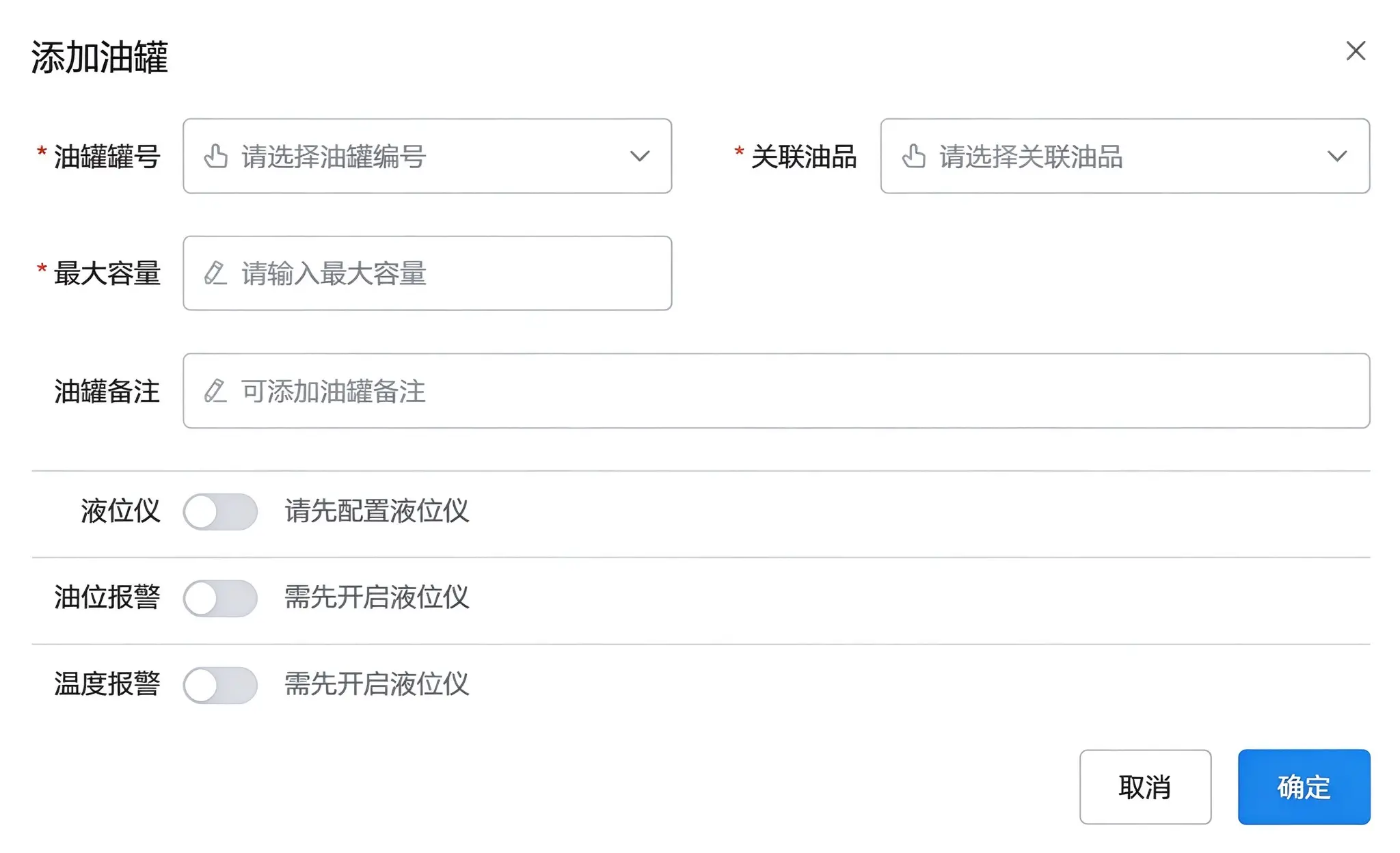
4.5.3 Fuel Nozzle Setting (Critical mapping step)
Go to Nozzle setting, add every physical fuel gun: ‼️ The communication‑ID you input here must be exactly equal to the MachineCode value you wrote in DIT serial‑port registration. If mismatch occurs, server cannot receive data from this fuel nozzle.
‑ Communication number = MachineCode from DIT ‑ Select linked oil‑tank ‑ Set nozzle number and multi‑gun sequence number.
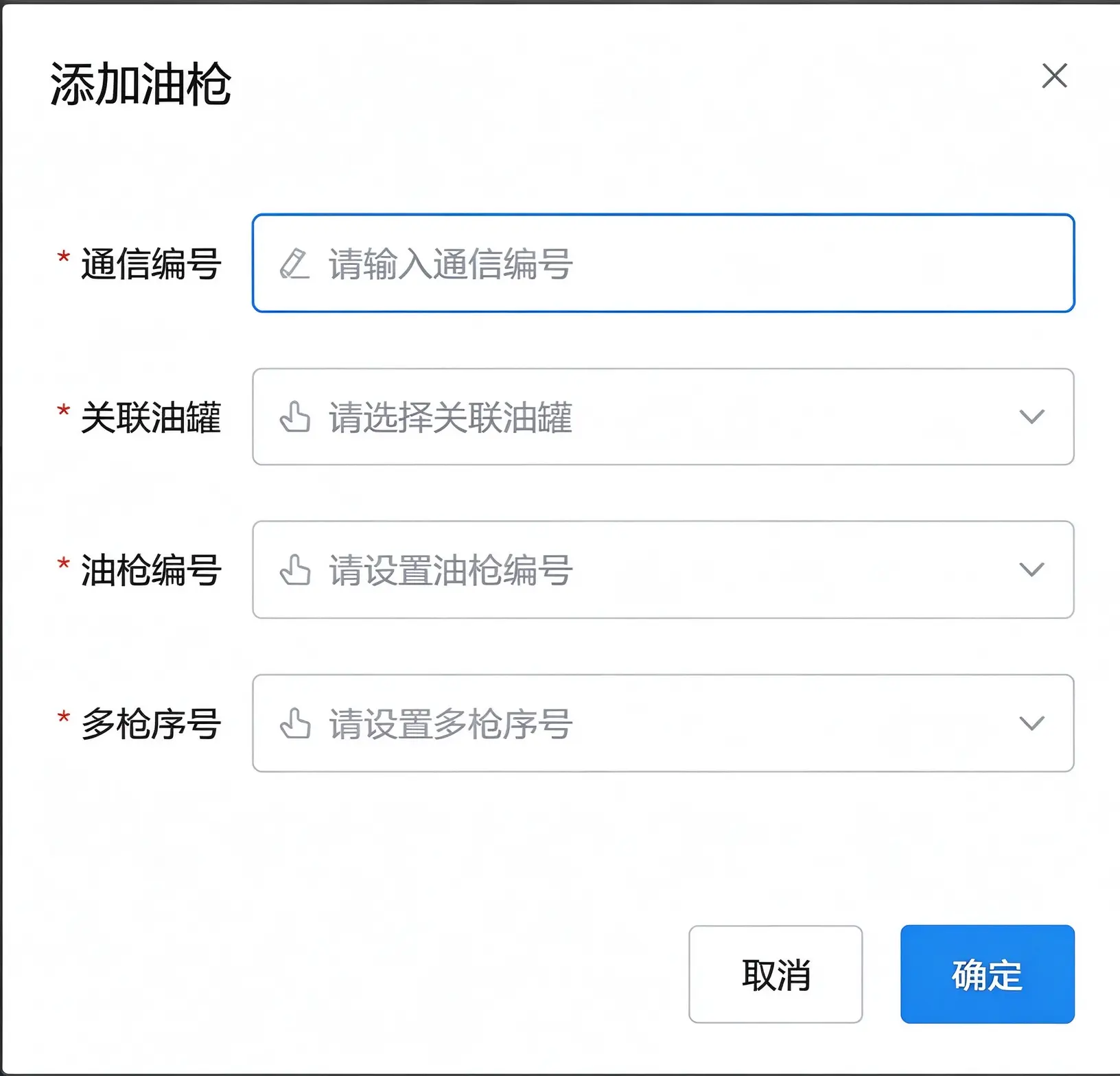
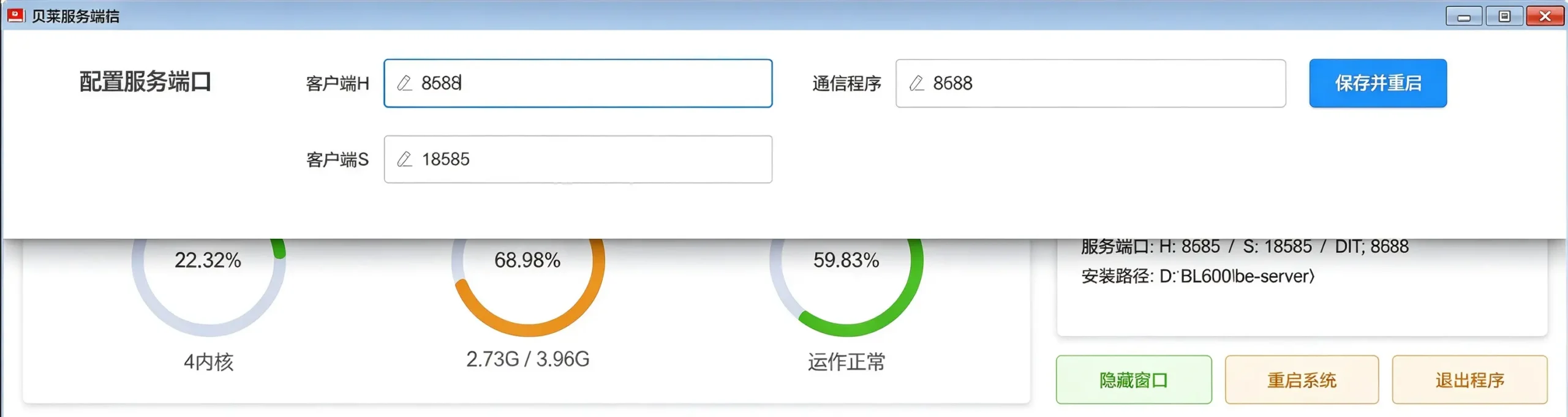
4.6 Port Parameters Setting
Open service‑port configuration page: ‑ Client‑H (http): 8585 ‑ Client‑S (socket):18585 ‑ Communication‑program port: 8586 (must equal DIT general‑config port)
Only modify port values if these ports are occupied by other software. Keep default in most deployment scenarios.
4.7 Auto‑Update Setting
Auto‑update is enabled by default. Scheduled update time is 03:00 every early morning. It will automatically push updates for DIT, server terminal and application‑client synchronously.
Note: Do not shut down server PC during automatic‑update window.
4.8 Server‑Terminal Running Status Check
Return to main dashboard of server terminal: ‑ Observe CPU usage, memory usage, system load value. Long‑term load higher than 70% indicates insufficient server hardware performance and you should upgrade computer hardware. ‑ Check connected‑device list. Confirm that DIT collection service appears as online connected device.
Step 5: Install Beyi Application Client for Cashier Workstation
Application client is the front‑end operation interface for cashiers and station administrators. You can install application‑client on multiple computers to realize multi‑cashier‑desk concurrent operation.
- Run application‑client installation package. Change install folder to D drive. Complete installation. 👉【Image14】 Image content: Application‑client login screen screenshot Alt text: Beyi application client cashier login interface
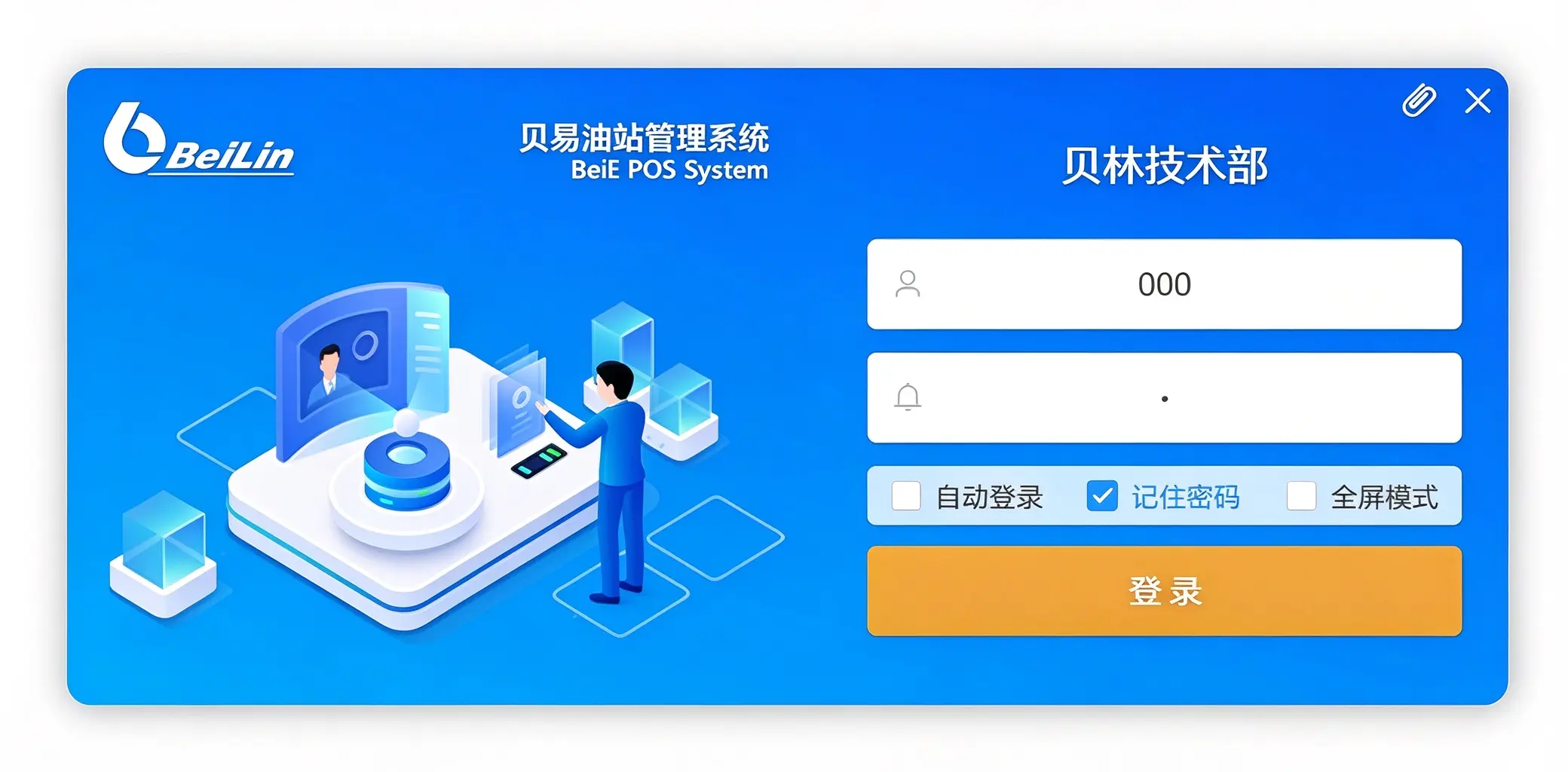
Important rule: If application‑client is installed on the same physical PC as server terminal: NO repeated activation required. If you deploy extra cashier computers on LAN: only install application‑client on those machines. Input the LAN IP address of your main server‑terminal PC during login. All clients share one unified database and business rules.
Post‑Deployment Validation Checklist (Must complete before station goes live)
Finish all below checks to verify whole system works correctly:
- DIT software stays running in background, system log shows authorization success and fuel‑gun connection logs.
- Server‑terminal main dashboard shows DIT device in connected‑device list. CPU and memory load are normal.
- Open application‑client and log in. Fuel‑gun status can be displayed normally on cashier interface.
- Trigger a test fuel‑dispensing action on physical fuel dispenser. Confirm that fuel‑volume, amount data can upload to application‑client order list in real‑time.
Common On‑Site Installation Troubleshooting Summary
- DIT cannot connect security dongle: Wrong COM port selected, or CH341 driver not properly installed.
- No fuel‑gun data arrives at server‑terminal: Machine‑Code mismatch between DIT serial registration and server‑terminal nozzle setting; or port 8586 inconsistent between DIT and server terminal.
- Server‑terminal cannot connect MySQL database: Wrong root password, BT‑MySQL service not started.
- Application‑client cannot connect server terminal: Firewall of main‑server PC blocks port 8585 /18585 /8586; wrong server LAN IP filled in client‑side setting.
- Data risk warning: Never install server‑terminal and MySQL on system C‑drive. System crash or Windows reinstall may erase all station business data.
Conclusion
After finishing full installation and configuration, keep DIT collection software and Beyi server‑terminal minimized and running persistently in background of the main‑server computer. Daily cashiers only need to launch the application‑client for fuel settlement, IC‑card issuing and shift handover work.
If you have gas‑station‑system project inquiries or customized solution requirements, please feel free to contact us for more information.