
BeiE Gas Station Management System: POS Cashier & Shift Handover Operation Guide
News 2026年 10月 19日 36
After finishing the configuration of fuel tanks and nozzles and confirming stable communication, you can start gas station pos cashier operation via the front-end POS cashier module. This function covers fuel payment, order management, batch settlement and shift handover.
Many gas station owners struggle with common pain points when using ordinary cashier systems on the market. These include unstable communication between nozzles and software, lost orders that are hard to trace, inadequate void functions for wrong entries leading to accounting risks, separate receipts for fleet fueling which are easy to lose, unclear revenue breakdowns during shift handover that cause cash discrepancies, and scattered payment tabs slowing down checkout during peak hours.
The BeiE cashier module is built specifically to solve these challenges. This gas station pos cashier operation workflow is more than a simple payment panel. It enables automatic data upload from fuel nozzles, full audit trails for all transactions, batch settlement for fleet customers, and automatic revenue grouping for shift reports. It is easy for cashiers to learn while giving station owners reliable reconciliation and management capabilities.
1. Overview of Cashier Interface
The cashier interface is the core workspace for daily gas station pos cashier operation. Click the Cashier Interface menu to enter, where you can monitor real-time nozzle status, receive fuel orders and manage sales records. Interface layout:
- Left sidebar: Quick access to other function modules
- Order panel: Shows all orders uploaded from fuel nozzles. Filter orders by nozzle or status
- Transaction info panel: View detailed amount and fuel data. Click nozzle number to filter orders for that pump
- Nozzles status indicator:
- Blue: Idle
- Green: Card inserted
- Red: Fueling in progress
![Main cashier dashboard]](https://fueldispenserpro.com/wp-content/uploads/2026/10/2026101907465586.webp "Main cashier dashboard]")
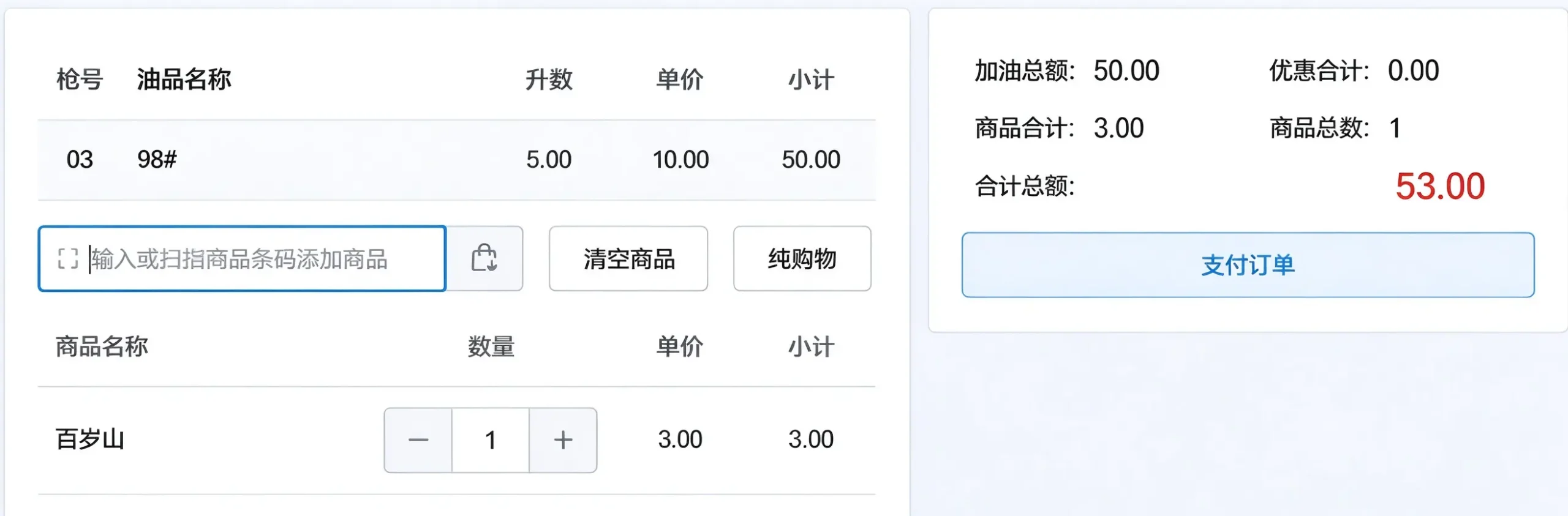
2. Payment for Fuel Orders
During daily gas station pos cashier operation, there are two quick ways to complete payment:
- Click the nozzle card of the target order, open the transaction panel and click Pay Order
- Directly click the amount area on the order to bring up the payment window
On the payment page, select your preferred payment method. The system supports cash, WeChat Pay, Alipay, POS terminal, member balance, bank transfer, Sinopec card, PetroChina card and more. Confirm payment once funds are received, and you may print a receipt for customers. This flexible payment design helps speed up gas station pos cashier operation during busy peak hours.
3. Manage Completed Orders
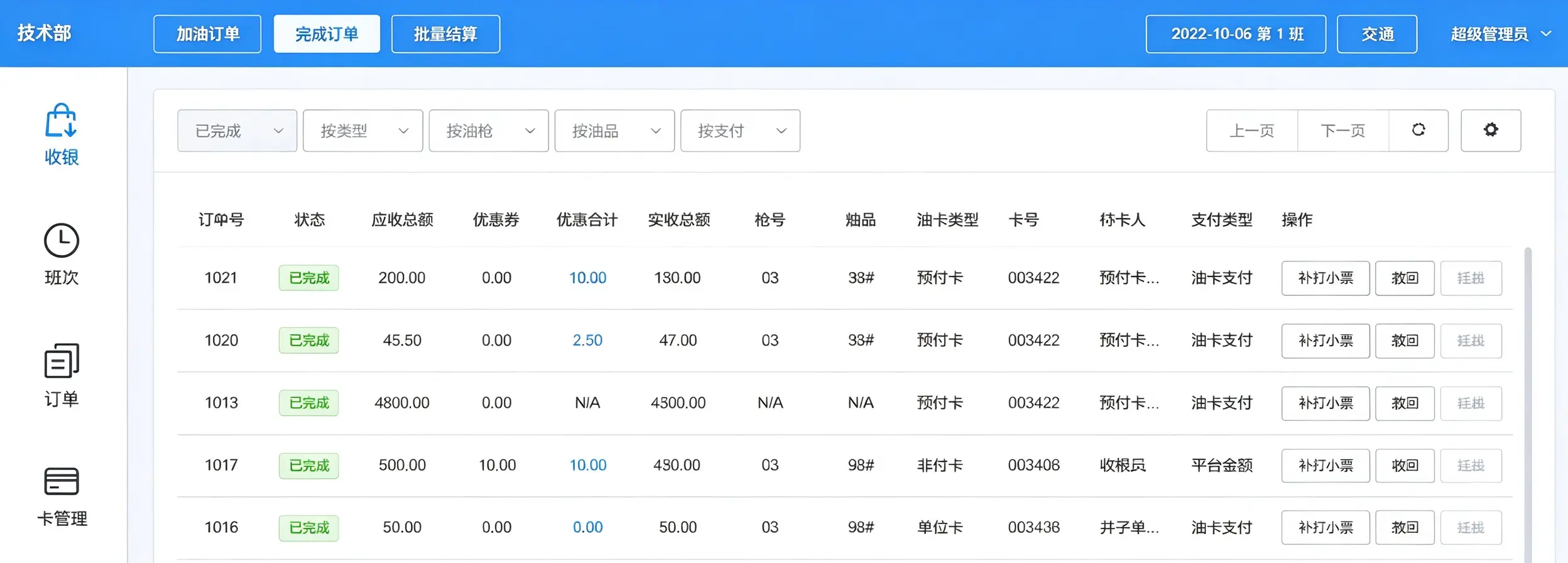
Click Completed Orders from the submenu to view all settled records generated during gas station pos cashier operation.
- Filter orders by type: fuel-only, retail, mixed orders, nozzle, fuel grade or payment method
- Available actions: reprint receipt or void finished orders to correct mistakes
- Custom display: drag and rearrange table columns according to your needs All modification actions leave logs, which greatly simplifies reconciliation work for your gas station cashier system.
4. Batch Settlement
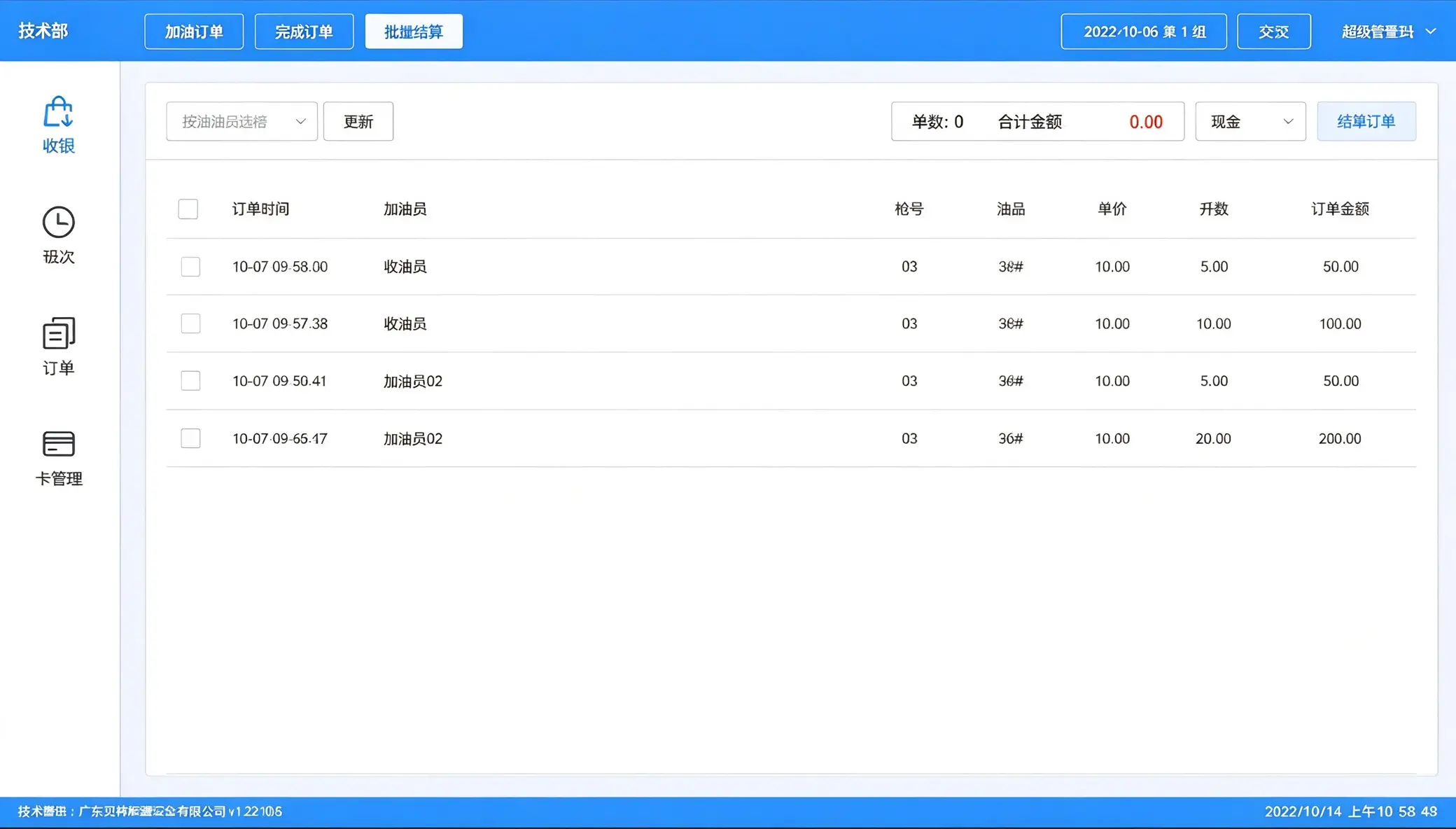
Gas station batch order settlement is ideal for fleet clients and bulk checkout scenarios, such as multiple fueling transactions settled together after service, or bulk payment via employee pre-paid cards and cash. Steps:
- Open the batch settlement page, filter orders by fuel attendant
- Tick multiple orders to combine
- Select non-card payment method and settle all selected orders in one transaction This feature removes the trouble of stacks of scattered receipts, a common headache for traditional gas station pos cashier operation.
5. Shift Handover
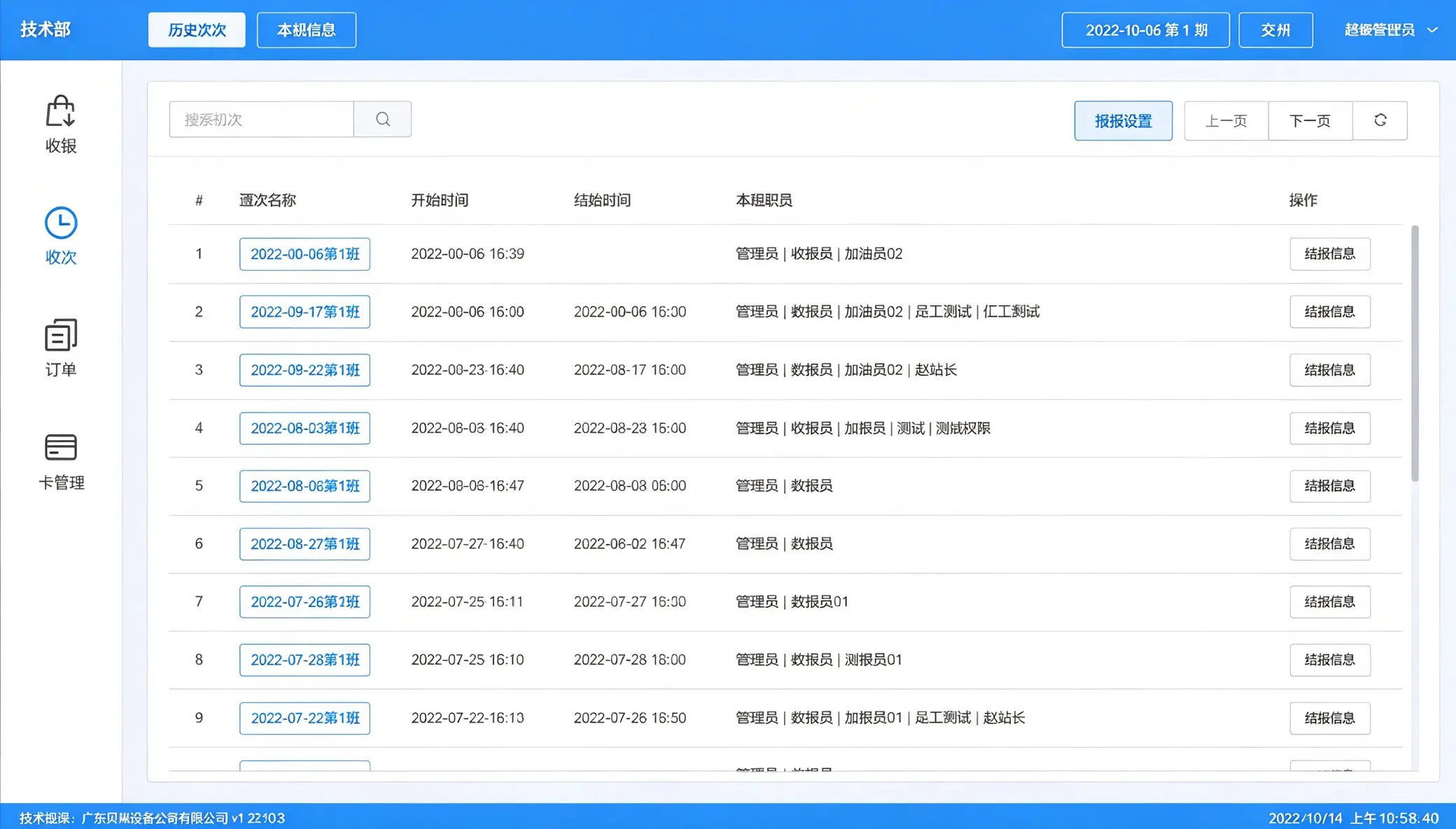
Fuel station shift handover is a mandatory daily procedure after gas station pos cashier operation finishes for the shift. The shift section includes Shift History and Current Shift Summary.
- Shift History: Permanently stores all previous handover logs, including shift time, cashier and revenue data. Records can be exported for audit. You can customize report fields.
- Current Shift: Displays real-time statistics of sales and payment breakdown. At the end of duty, the cashier completes handover here. You can print shift reports or export data to Excel. Automatic revenue classification avoids cash disputes that often appear in manual shift counting.
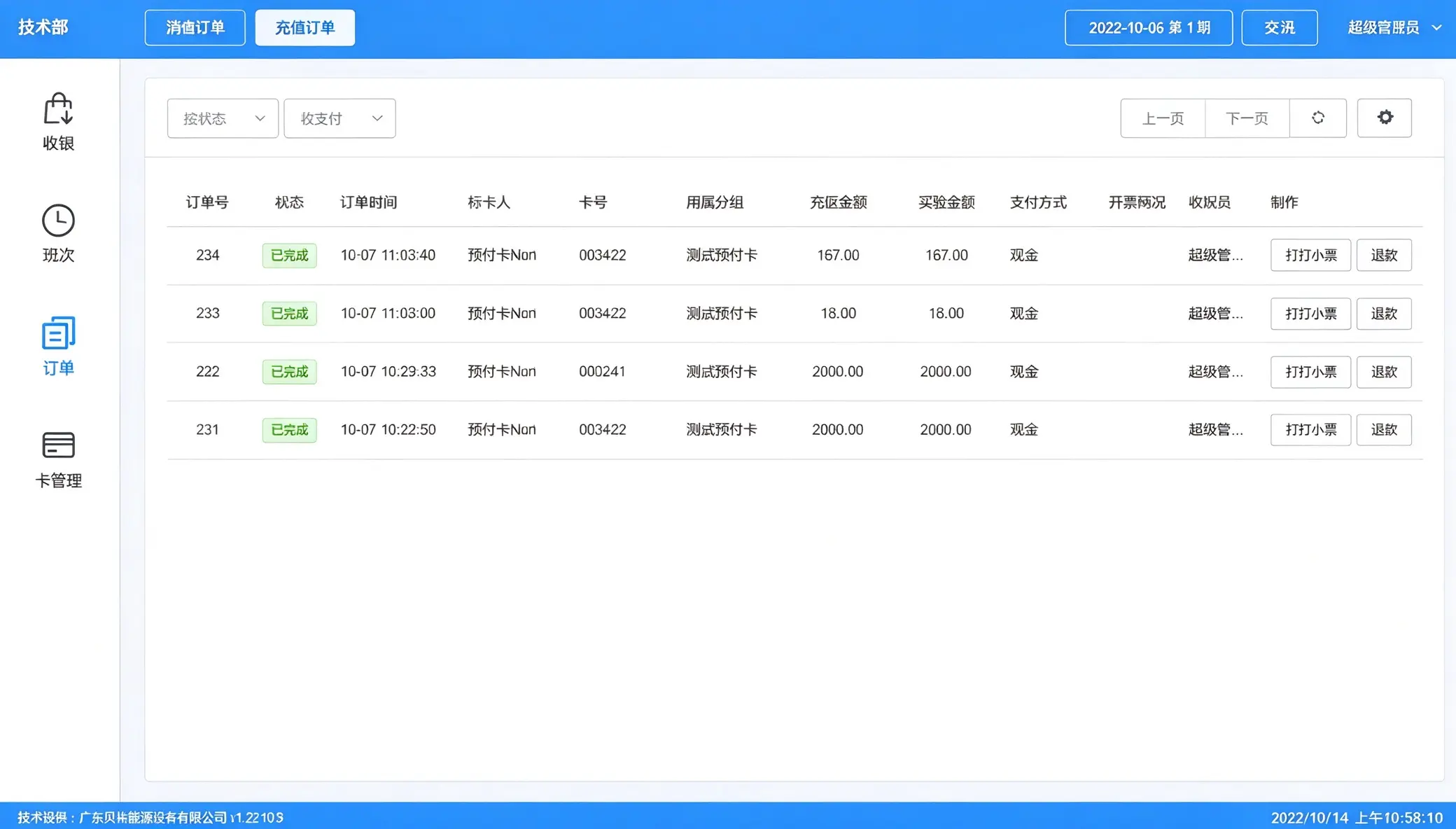
6. Consumption & Recharge Orders
The Order menu contains two categories: consumption orders and recharge orders.
- Consumption orders: All fuel sales records generated from gas station pos cashier operation, filtered by payment status such as pending, completed or voided
- Recharge orders: Member balance recharge history. Recharge receipts support reprint and refund reversal Separated order categories keep member accounts independent from regular fuel sales.
7. Important Operation Notes
- Make sure the BeiE service terminal runs normally. Otherwise, fuel orders cannot sync to the cashier station and interrupt gas station pos cashier operation
- Always use the official void function for wrong orders. Do not manually delete records to keep inventory and reports accurate
- Batch settlement does not support member card transactions
- Complete fuel station shift handover before relieving the next cashier to avoid messy data
If you meet communication or reconciliation issues during cashier setup and handover, contact us for one-on-one technical support to optimize your gas station pos cashier operation.